Messaging
Work conversations in the inbox, build WhatsApp templates for Meta approval and send broadcasts to a segment.
Last updated
Messaging is where customers and your team talk. The inbox handles live conversations, templates cover messages you send first, and broadcasts reach a whole segment at once.
Inbox
The inbox puts every conversation of the organization on one screen. The list can be filtered by status, account, team and person. Each card shows the channel, when the contact last wrote, the team and who the conversation is assigned to. Next to the list, the open conversation shows each message with its status: sent, delivered or read.
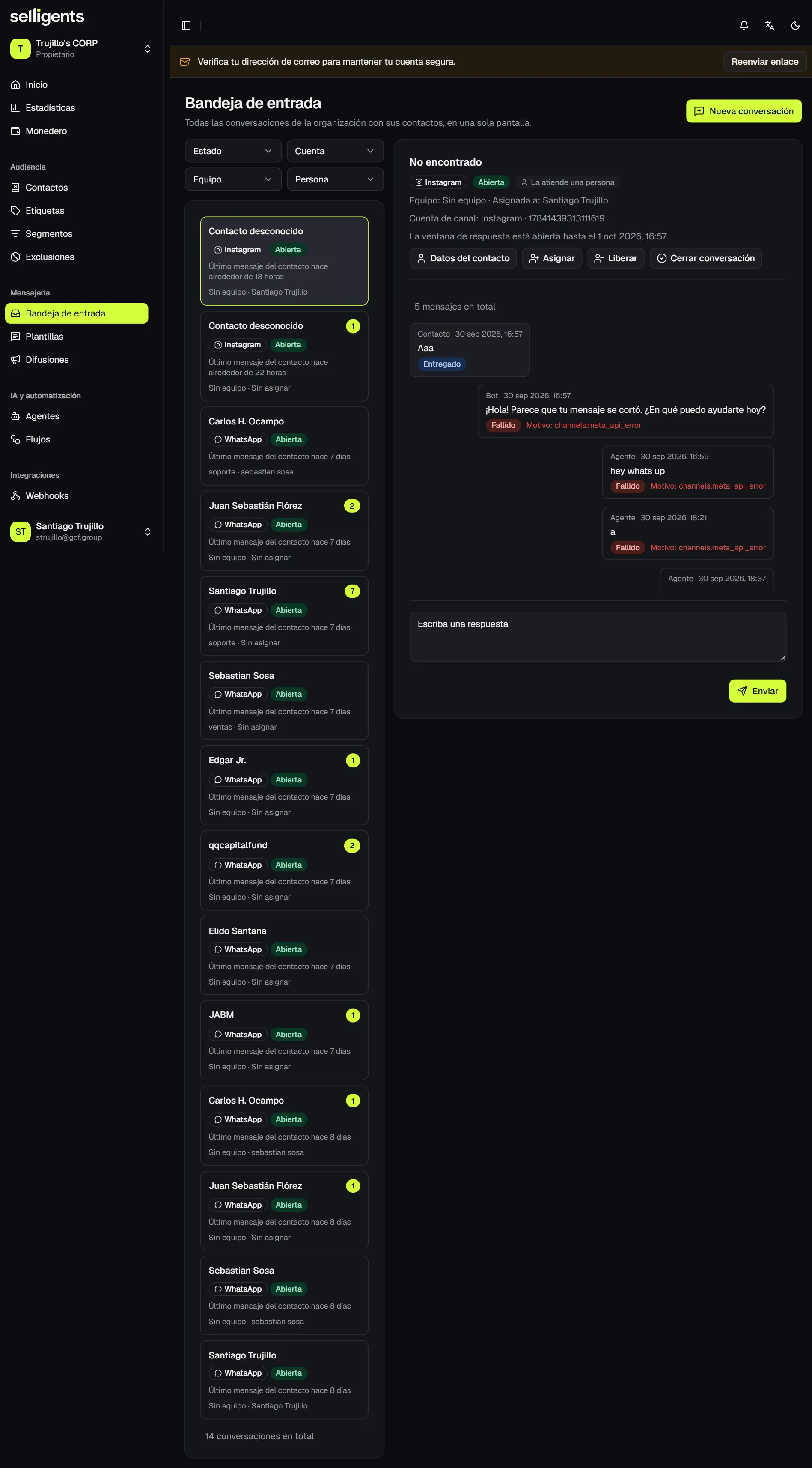
Inside a conversation you can:
- Reply. Type your message and send it.
- Template. Send an approved template. This is mandatory once WhatsApp’s 24-hour window has closed. The app tells you until when the window is open.
- Assign. Hand the conversation to a team or to a specific person.
- Take over from the bot. When an AI agent is handling the conversation, this passes it to a person. Later you can release it back to the bot from the same place.
- Contact details. Open the contact’s card without leaving the inbox.
- Close conversation. Mark it as resolved. If the contact writes again, it reopens.
To start a conversation yourself, use New conversation and send a template to a contact.
Templates
A template is a message that Meta must approve before you can use it to start a WhatsApp conversation. Messages inside the 24-hour window do not need one.
The list shows each template’s language, category and status. Sync all fetches the current status of every template from Meta.
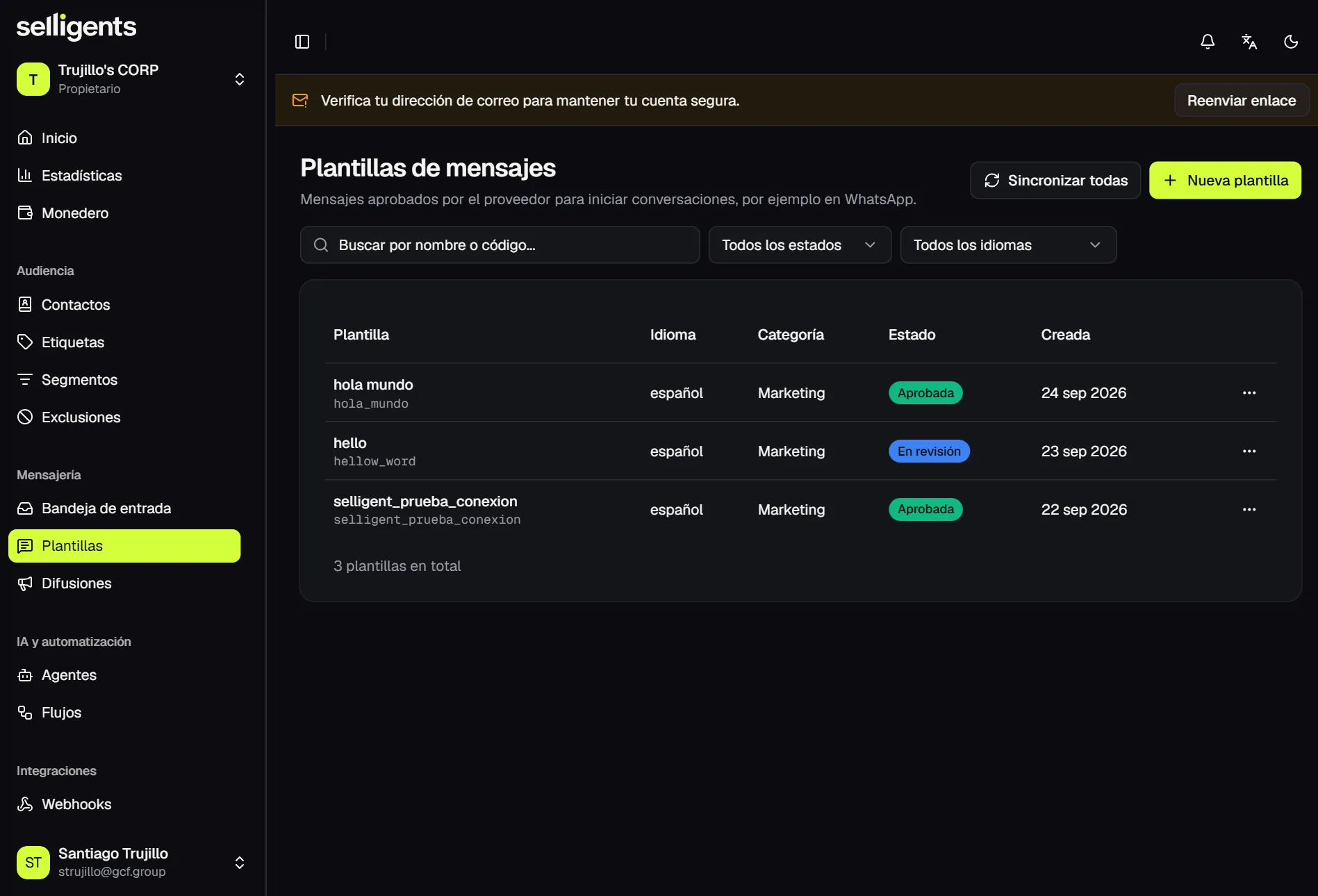
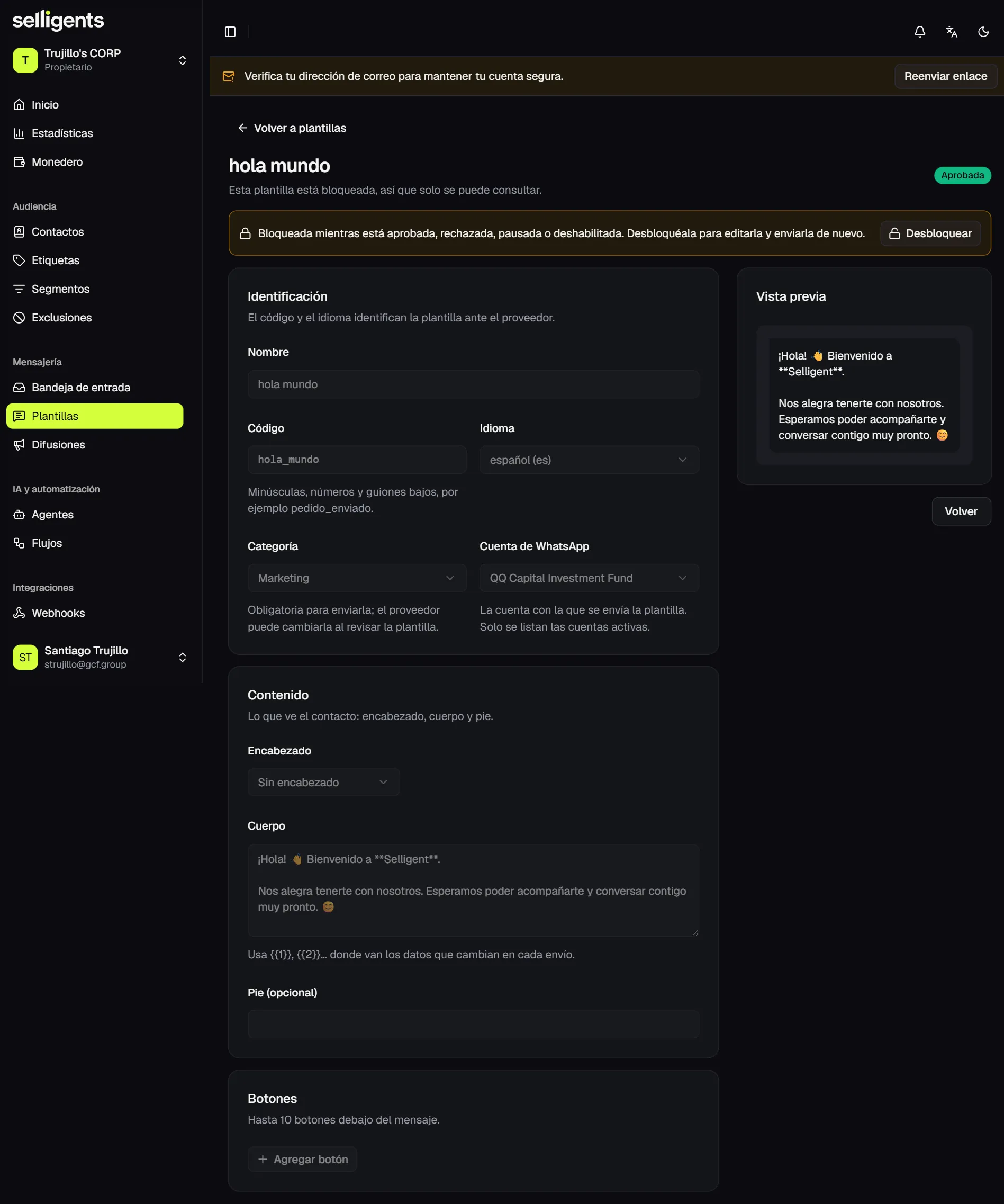
A template has:
- A name and a code, in lowercase with underscores.
- A language.
- A category: Marketing, Utility or Authentication.
- The WhatsApp account that sends it.
- An optional header and footer.
- A body with variables such as
{{1}}and{{2}}, each with an example value. - Up to 10 buttons.
The preview updates as you type.
A template moves through these steps:
- Draft. Save the template while you work on it.
- In review. Submit it for approval and wait for Meta.
- Approved or rejected. A rejection comes with the reason.
Only drafts can be edited or deleted. A rejected template can be unlocked back to draft so you can fix it and submit it again.
Broadcasts
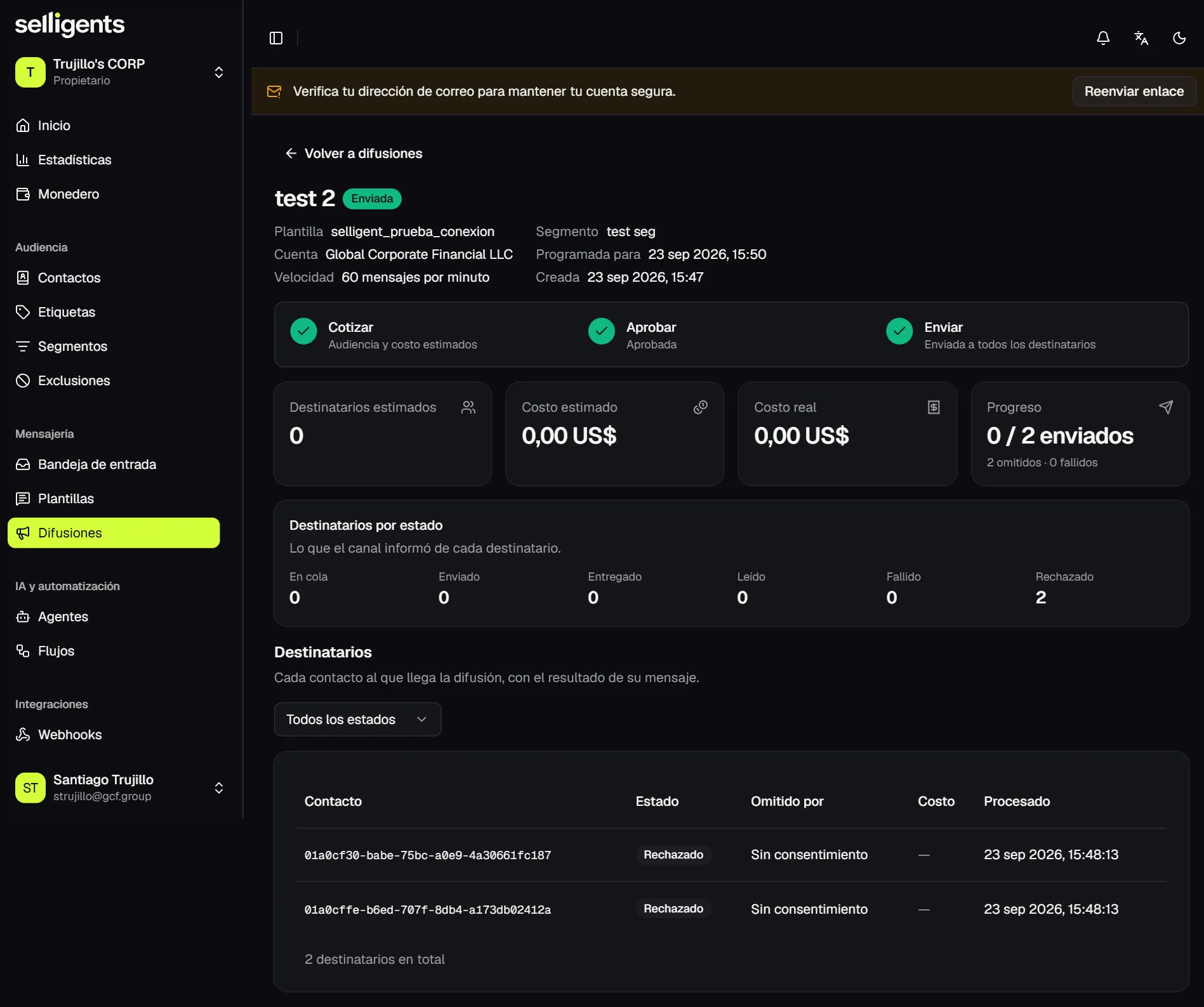
A broadcast is a bulk send of one approved template to every contact of a segment over WhatsApp. Only contacts with granted consent on that channel receive it.
The list refreshes on its own while sends are scheduled or running, and shows the progress of each broadcast: sent, skipped and failed.
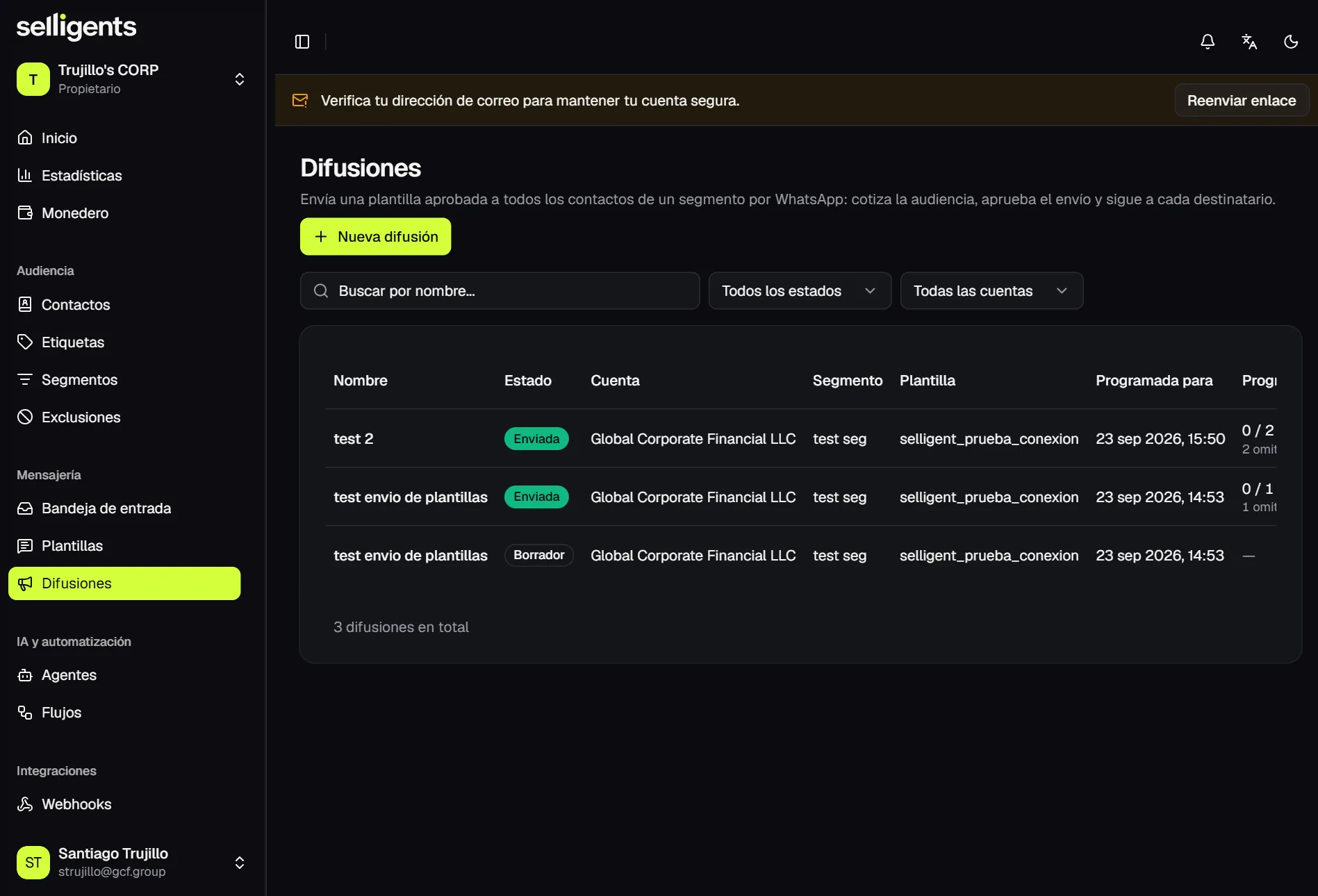
A broadcast always goes through the same four steps:
- Create. Set the name, WhatsApp account, segment and template, the value of each variable (a contact field or a fixed text), an optional date and time, and the sending speed in messages per minute.
- Quote. Selligents calculates the recipients and the estimated cost.
- Approve. Confirm the figures. If you scheduled a time, the broadcast waits for it.
- Send. The broadcast goes into the queue. While it runs you can pause and resume it.
The detail page shows estimated and actual figures, recipients by status, and a table with every contact and, for anyone skipped, the reason, such as no consent or a suppression.
Only draft broadcasts can be edited or deleted.