Integrations
Connect WhatsApp and Instagram, choose default teams and agents per channel, and push events out with webhooks.
Last updated
Integrations connect Selligents to the outside world: the channels where customers write to you, and the systems that need to know what happens.
Channels
Channels are the WhatsApp numbers and Instagram accounts your organization talks through. WhatsApp is live today, and Instagram is coming next.
To connect one, choose the channel and authorize Selligents through Meta. The result is organized in two levels:
- Connections. Each authorization you grant through Meta becomes a connection.
- Accounts. Each connection provides one or more accounts, such as phone numbers.
For each account you see its status, active or inactive, and the quality rating and messaging limit that Meta assigns to it, for example GREEN and TIER_250. The messaging limit sets how many customers you can start conversations with each day. Watch the quality rating: a drop can lower your limit.
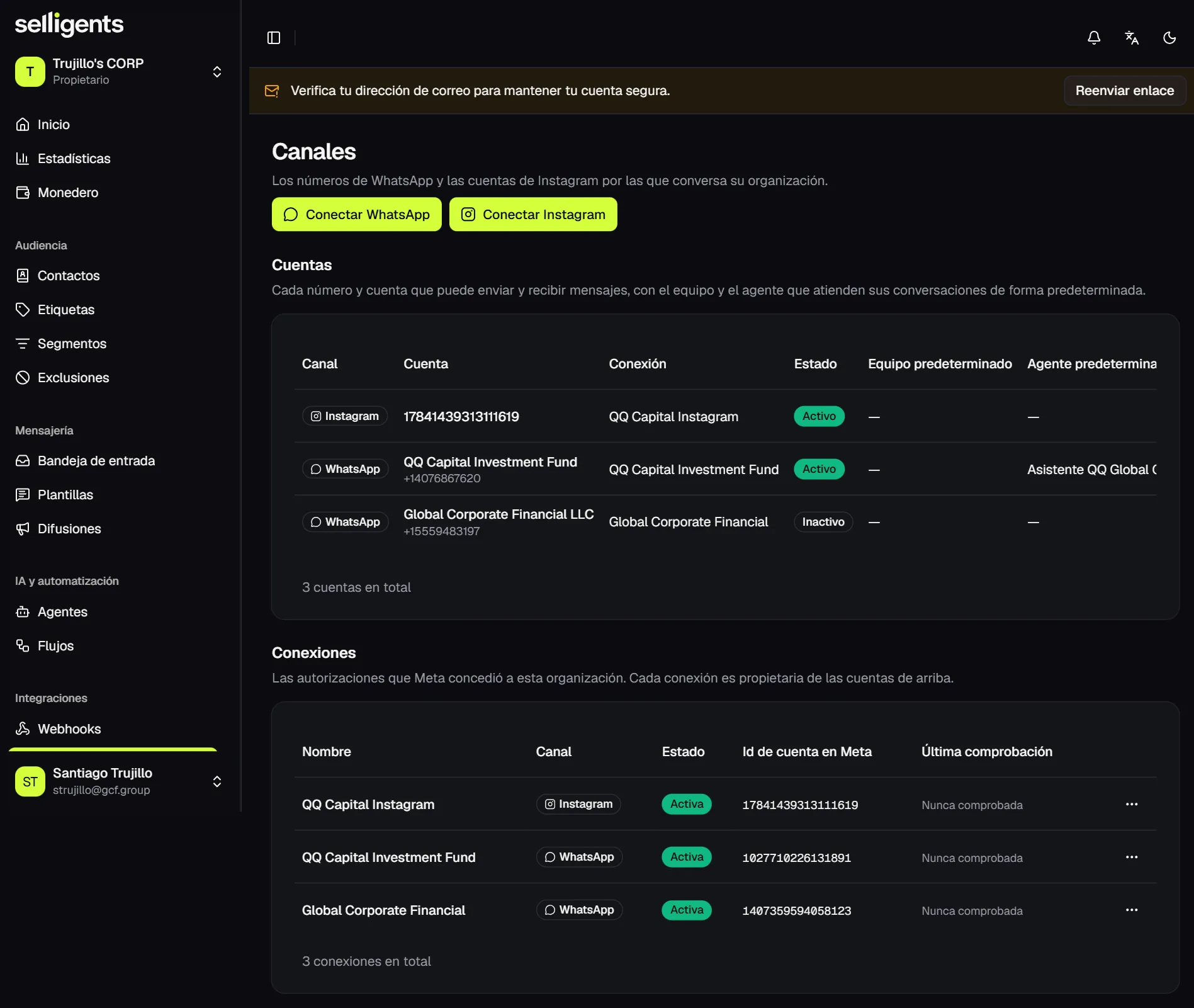
Each account also has two key settings in its actions:
- Default team. The team that receives new conversations on that account.
- Default agent. The AI agent that answers first on that account. It is covered next.
Default agent
Choosing a default agent on a channel account is what switches AI replies on. Without one, conversations go straight to the inbox for a person to handle, even if you have a published agent. Pick any published agent in the account’s actions. After you set it:
- Every new conversation on that account starts with the agent answering.
- A person can take over at any time from the inbox, and release the conversation back to the bot when finished.
- Intents and flows can still redirect a conversation to a team or stop the agent from writing.
Instead of a default agent, you can also build a flow that calls the agent through the Agent reply node.
See AI and automation for how to create and publish an agent.
Webhooks
Webhooks are HTTPS addresses of your own systems, such as a CRM, an ERP or an automation tool, that get notified when something happens in your conversations.
When you create one, you pick the events it sends. On save, the signing secret is shown only once. Keep it: it lets you verify that each notification really comes from Selligents, and a Node.js verification example is there to copy.
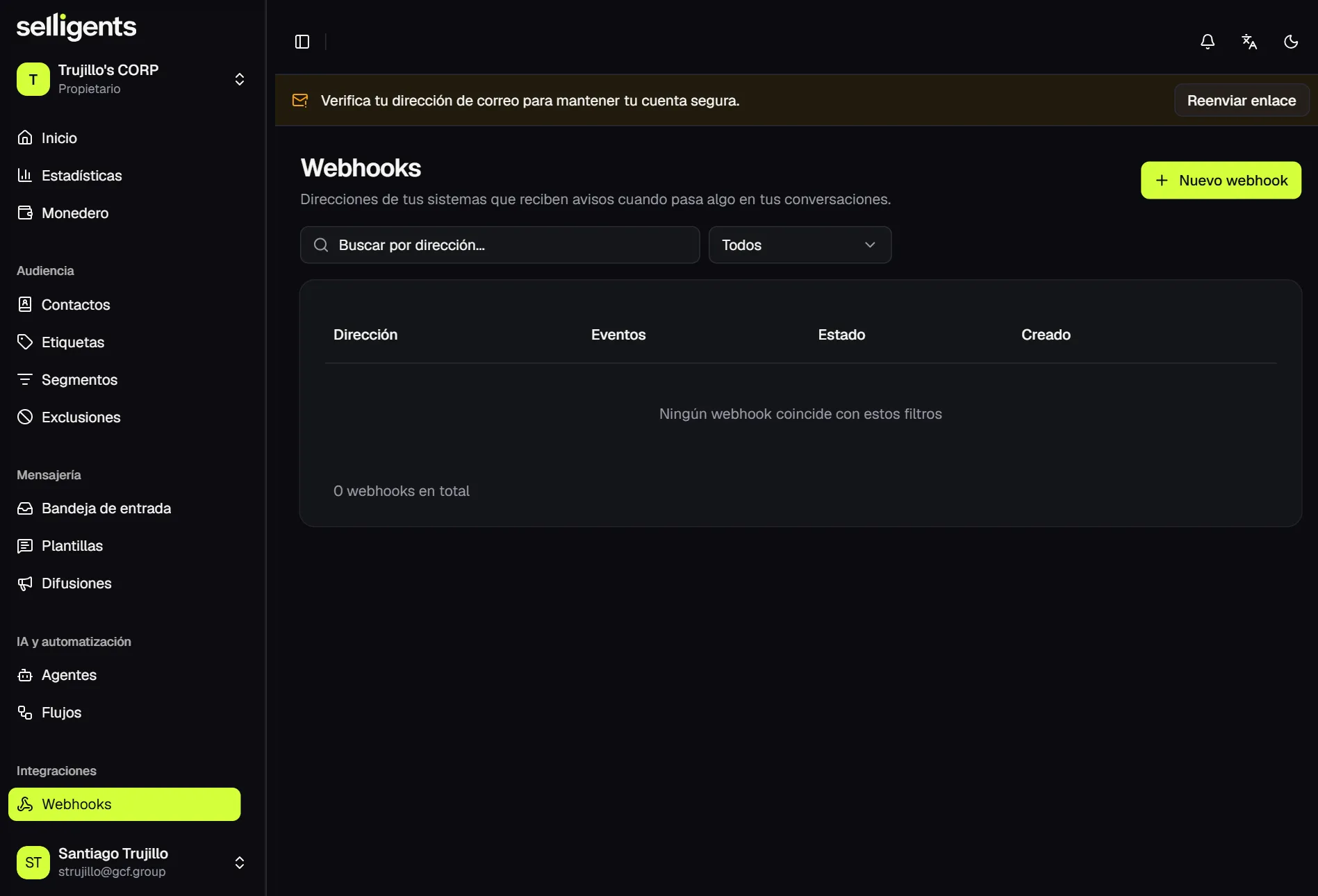
From the detail page you can:
- Send a test event. Confirm your endpoint responds correctly.
- Rotate the secret. Generate a new signing secret if the old one may have leaked, then update your endpoint right away.
- Activate or deactivate. Pause notifications without deleting the webhook.
- Review deliveries. See the status, HTTP code, duration and response of every delivery, and retry one that did not go through.