Getting started
Sign in, read the home dashboard, find your way around the sidebar and set up your profile.
Last updated
Selligents brings your customer channels, AI agents and sales team into one workspace. This page covers the first things you see after signing in.
The app runs in English or Spanish. The screenshots in this manual were taken with the app in Spanish.
Signing in
Open the app and sign in with your email and password, or follow the invitation link your organization sent you. The first time you arrive through an invitation without an account, you create one on the spot before entering the workspace.
Until you verify your email, a yellow banner stays at the top of every screen. Use Resend link and open the link from your inbox to clear it.
The home dashboard
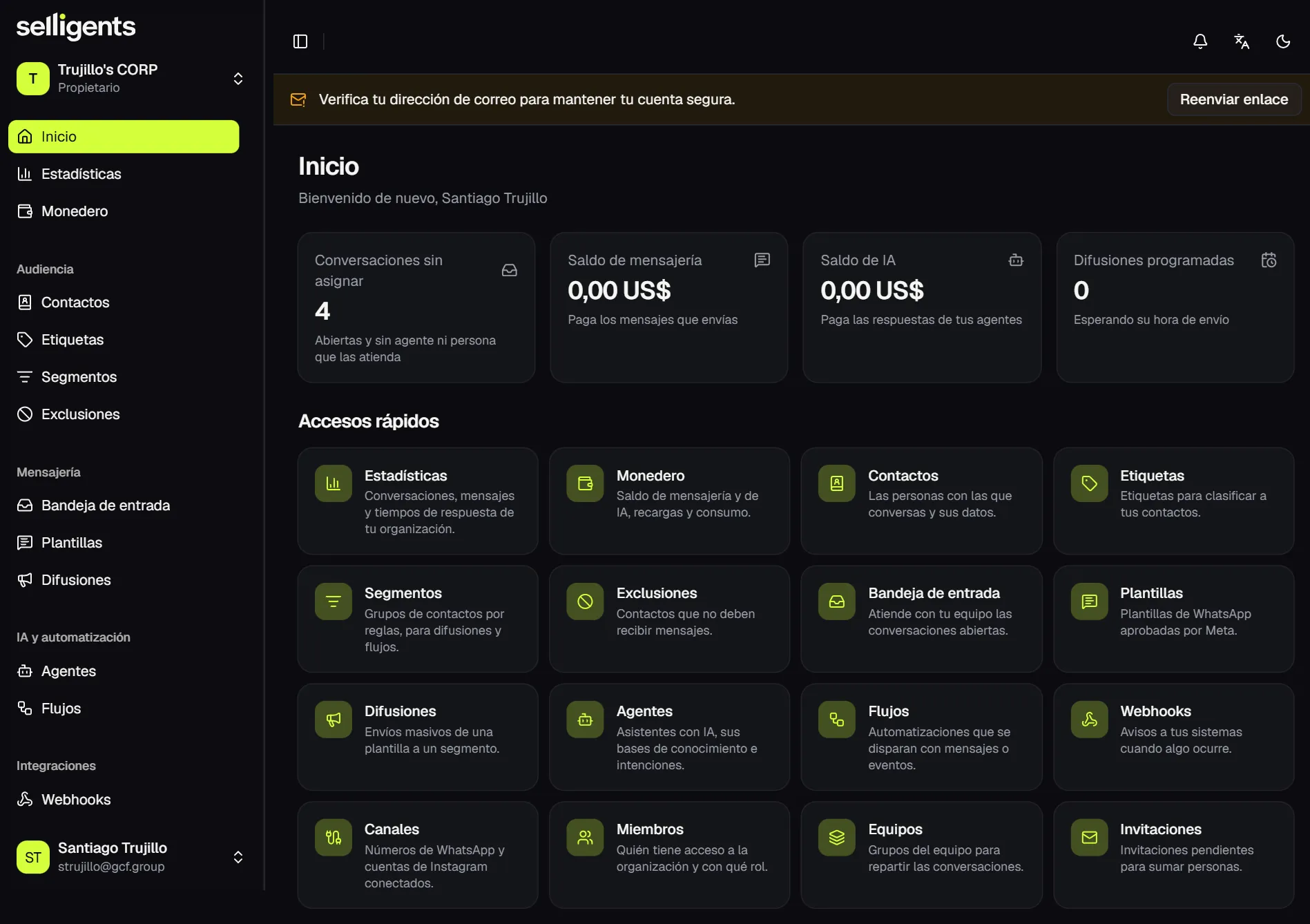
Home shows four indicators that answer the question “what needs my attention today?”:
- Unassigned conversations. Open conversations with no agent or person handling them.
- Messaging balance. The funds that pay for the messages you send.
- AI balance. The funds that pay for your agents’ replies.
- Scheduled broadcasts. Campaigns waiting for their send time.
Below the indicators, shortcuts jump straight to every module.
Navigating the workspace
Home, Analytics and Wallet sit at the top of the sidebar. Below them, the sidebar groups every module by purpose:
| Group | What lives there |
|---|---|
| Audience | Contacts, tags, segments and suppressions |
| Messaging | Inbox, templates and broadcasts |
| AI & automation | Agents, knowledge bases, intents and flows |
| Integrations | Channels and webhooks |
| Team | Members, teams and invitations |
You only see the modules your role has permission for.
Around the sidebar you also find:
- Organization switcher. If you belong to several organizations, switch between them here. Everything you see, from contacts and conversations to balances, belongs to the active organization.
- Top bar. Notifications, the language switch between English and Spanish, and the light or dark theme.
- User menu. Opens your profile and signs you out.
Your profile
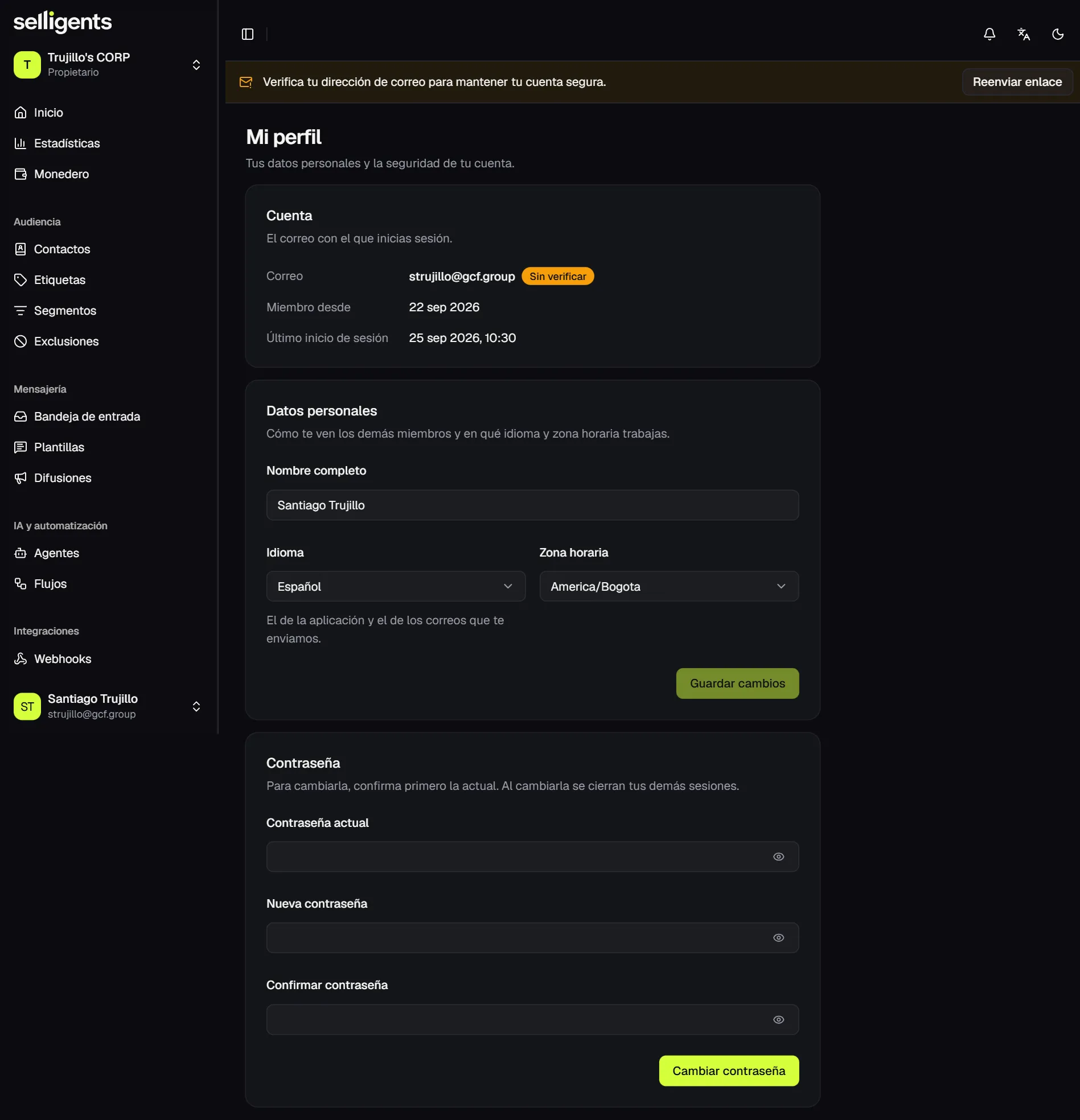
In your profile you can change your name, the language of the app and its emails, your time zone and your password. The time zone sets the times shown in conversations and broadcasts.
Roles
Every member has one role in each organization:
- Owner. Full control, including members and balances. Every organization needs at least one active owner.
- Admin. Manages members, channels, templates, agents and flows.
- Agent. Focuses on handling conversations and looking up contacts.
Where to go next
If you are setting up a new organization, follow the recommended setup order. It lists the ten steps from inviting your team to sending your first broadcast.